 Stampede Design
Recruitment is the necessary evil mountains of Mordor that we as researchers must pass through in order to gain access to our users. But what if it doesn’t have to be like that?
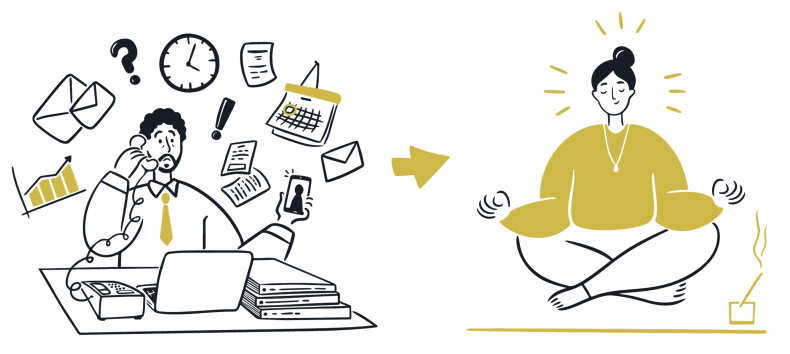
Recruitment: Back-and-forth, error-prone hell
I love our users, but abhor the recruitment process with a passion. Accidentally misspelling a user’s name or giving them the wrong date and time is the kind of mortifying mistake that keeps me up at night.
Before the new process I’m about to share, we used to
- Manually contact all our users and maintain multiple back-and-forth conversations — explaining the research, how it works, proposing time slots and finding the Goldilocks slot that works for everyone
- When recruitment periods were tight, I’d find myself checking my phone outside work or on-the-go to coordinate users, all the time hoping I don’t make errors while doing this on mobile
- And even after a slot is confirmed, there’s having to remind yourself to make sure the user gets a Calendar invite, and then remembering to remind them so they remember to show up
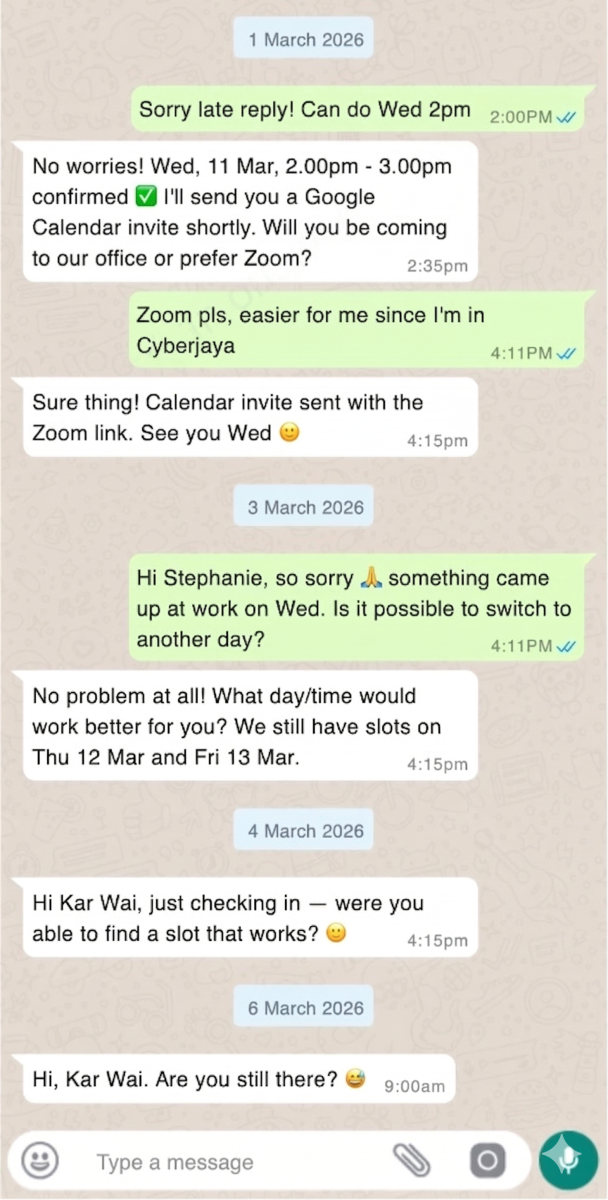
The writing was on the wall:
A purely human-driven recruitment process was too manual, error-prone and delay-heavy.
If any of this resonates with your soul, welcome fellow recruitment-weary researcher. May you find rest here.
What success looks like
As designers we must not just articulate the problem, we must define what good looks like. For me, that was:
- Efficiently and correctly scheduled research slots
- Users are well-prepared with the details and what to expect (and show up!)
- A process with flexibility to accommodate edge cases and the variability that come with every new round of recruitment
I also wanted this solution to try and keep within the tools we already used at Stampede. This not only avoided unnecessary additional tool subscriptions, it minimised the learning curve for other Stampeders looking to replicate the process.
At a glance, here’s how it works:
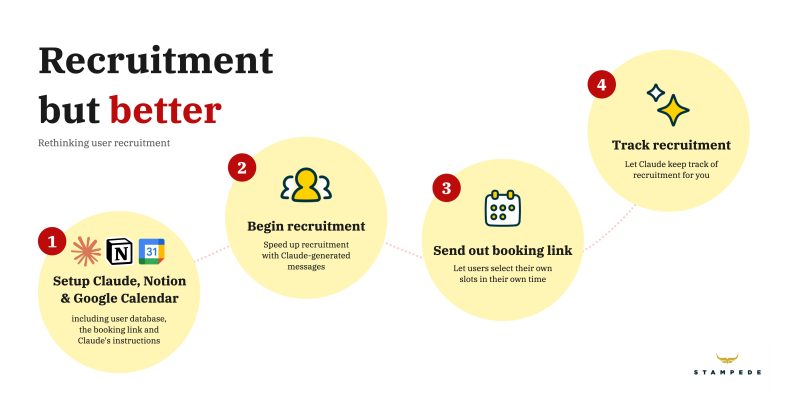
This new process uses existing tools Stampede already uses:
- Notion: The database keeper
- Google Calendar: The scheduler
- Claude AI: The personal secretary
Now, let’s break it down:
1. Set the stage with Claude, Notion and Google Calendar
1.1 Connect Claude to Notion and Google Calendar
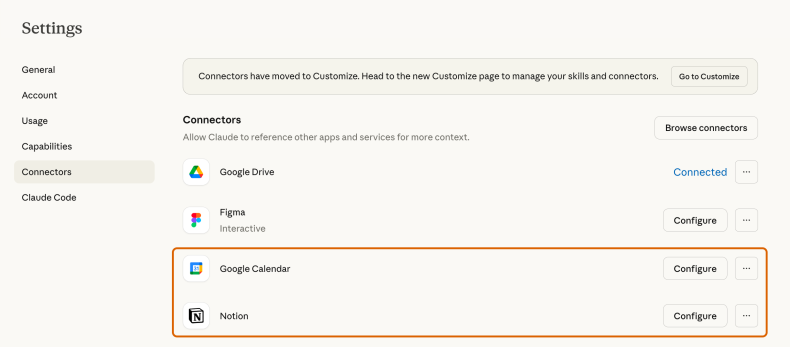
Connectors (under Settings > Connectors) let Claude ‘speak’ to Notion and Google Calendar, making it the personal secretary that cross-checks and make updates in Calendar and Notion on your behalf (and if you’re worried about AI going rogue and taking over your tools, there is no step in this process where Claude acts independently without you prompting it first).
1.2 Notion database and message templates
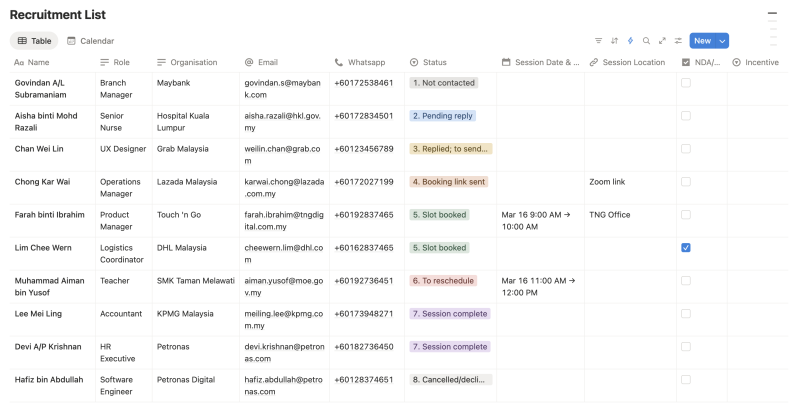
- Set up your database of users in Notion.
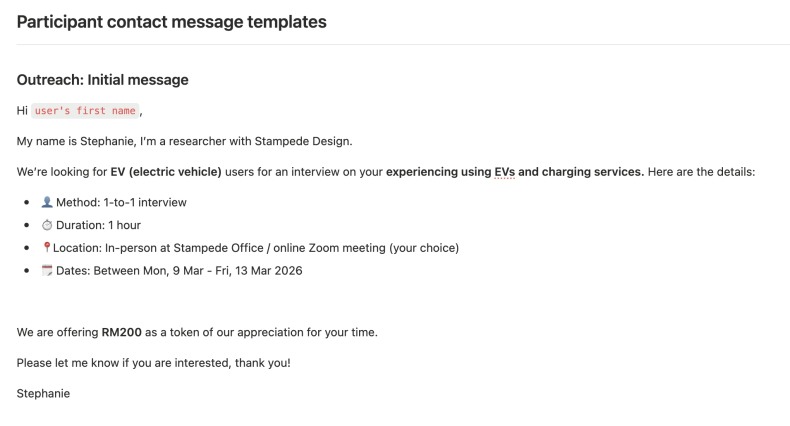
- While you’re at it, include message templates in the same page that Claude can use to generate personalised messages for your users, such as:
- Initial outreach messages
- Messages with booking links
- Pre-session reminders
1.3 Google Calendar Booking Link
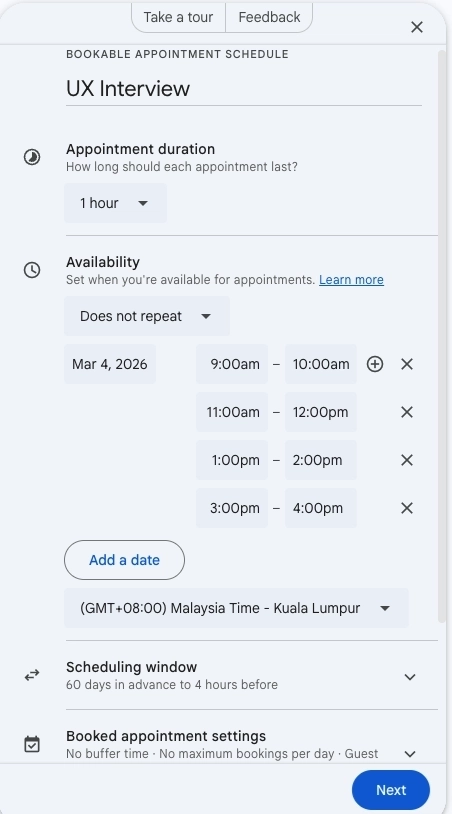
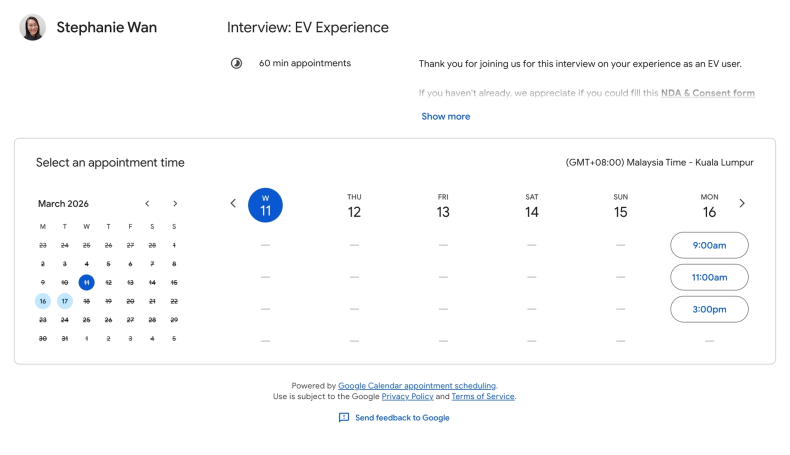
Google Calendar’s Scheduling Appointment tool is great for pre-setting research slots and letting users pick the slot that works for them. This takes a huge amount of manual work out of the back-and-forth ‘Does this date work for you?’ dance.
1.4 Give your Claude Project recruitment instructions
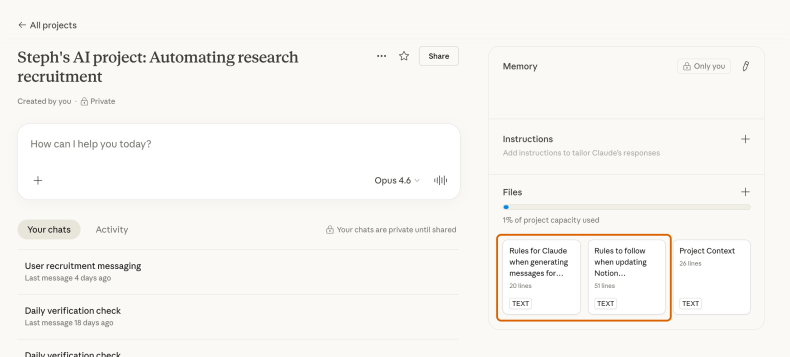
If you’re not already using it, use Claude Projects to keep context about your project all in one place via ‘Files’. We’ll give it some recruitment instructions here so Claude will apply them to any chat you open up.
Here’s how I crafted mine to maximise ideal output with Claude:
- In-built safeguards to ensure Claude always confirms back to me exactly what it changed
- A ‘Daily Verification Check’ that compares the Calendar invites and Notion for inconsistencies and errors
- How to deal with edge cases and ambiguity
Here’s the sample prompts I used:
🔽 Prompt: Rules to follow when updating Notion spreadsheet
Notion page for recruitment:
<INSERT LINK HERE>

Contains recruitment list and message templates.

==========
Rules to follow when updating the user recruitment spreadsheet:

1. For any change you make, confirm it back to me in the chat on the exact change you made.

For example, if my prompt was:
"Change John's slot to 2 Mar, 9am-10am", you make the change and then confirm it back showing the before and after in table form.
* 1st column header: "Field", data: Date
* 2nd column header: "Before", data: John's original slot date and time
* 3rd column header: "After", data: John's new slot date and time

2. If a change I made might have missing details, also clarify with me if I want to add the missing details.

For example, if my prompt was:
"Add in Mary Sue, new user"

Make the change, confirm back to me the change you made (as per Rule #1), then list the other details that are missing (like email address, Whatsapp number) and ask if I want to update that too.

3. When I prompt for it, do a Daily Verification Check between the Notion and Google Calendar.

* Flag any mismatches in a table, comparing what's in Google Calendar and what's in Notion. Don't make changes without my consent.
* When verifying, the calendar event title does not have to be identical, what matters is the correct user, date and time, location (virtual/physical).

How to match the participant:
* In most cases, the email listed in the Notion for the user should be the same as the email of their Google Cal invite.
* If this is not the case, look for the closest match - e.g. the user's first or last name in the event title, initials in the email address.
* Where there is ambiguity, flag that unknown to me so I can specify which users match between the Notion and Google Cal.

Situations you might flag:
* A user's Notion status is '5. Slot booked' but their date/time in Notion doesn't match that same user's slot in Google Calendar -> Flag the difference to me so I can reconcile
* A user's Notion status is '5. Slot booked' but has no Google Cal invite set -> Remind me they are missing a calendar invite
* A user's Notion status is '5. Slot booked' and they have a Google Cal invite, but the location or video conferencing has not been updated.
* A user's Notion status is '2. Pending reply' -> Prompt me to check in on this user for any new replies
* A user's Notion status is '3. Replied; to send booking link' but they don't have a corresponding Google Cal invite -> Remind me they haven't received the booking link yet
* A user's Notion status is '4. Booking link sent' but they don't have a corresponding Google Cal invite -> Remind me they haven't booked a slot yet
* A user who has a Google cal invite set but in Notion, their status was not updated to '5. Slot booked' and/or the date/time is not shown in Notion
* A user's status is '6. To reschedule', and there is a mismatch between the Google Cal date/time and the Notion date/time -> Prompt me to reconcile this
* A user's Google Cal session has already passed AND/OR the Notion shows their status as '7. Session Complete', but their Notion 'Incentive' status is empty or still at '1. To send incentive' -> Remind me they still need to receive their incentive

4. If I prompt you to make a change that would create a scheduling conflict (e.g. two participants at the same time), flag it to me before making the change.

5. If there is any ambiguity or edge cases not covered, clarify before making changes.

For example,
* If my prompt was "John's rescheduled to Mon, 2 Mar" but there are two Johns, you ask me which John I mean.
* If my prompt was "Billy rescheduled to Monday" you confirm which Monday date it is and what time.
* If my prompt included a name that is slightly different from the Notion but still has high-confidence match, e.g. I mispell "Samuel" as "Sameul" but the Notion says "Samuel Lee" (and there is only one feasible match), make a best-guess match, apply the change, then let me know in your response the guess you made to ensure you got the right person.
🔽 Prompt: Rules for Claude when generating messages for users
Instructions for Claude for generating messages for users:

1. Follow the displayed formatting (bullet points, spaces, bolds/italics) you see in the message template provided in Notion, but your output for me should be in code block form, formatted according to the platform conventions I will send it on, so that it will display the formatting as intended.

For example, if I will send it as a Whatsapp and there is a bolded bit of text, use asterisks because when pasted into Whatsapp, it will display as bold. For example, the block of text for me to copy from you would look like this:

"Hi Jane,

My name is Stephanie. I'm a researcher with Stampede Design.

Would you be available for an interview on *24 Mar, 9am-10am*?"


2. If you do not know which platform I plan to send on, verify with me first.

3. If you are not sure what the user's first name is, check with me first. Usually, in Malaysia, first names follow this convention:
* Cindy Tan (First name: Cindy, Last name: Tan)
* Tan Chee Wern (First name: Chee Wern, Last Name: Tan)
* Muhammad Abdullah (First name: Abdullah, Last name: Muhammad)
* Jacob A/L Mathew (First name: Jacob, Last name: A/L Mathew)
2. It’s go time — let’s reach out to users
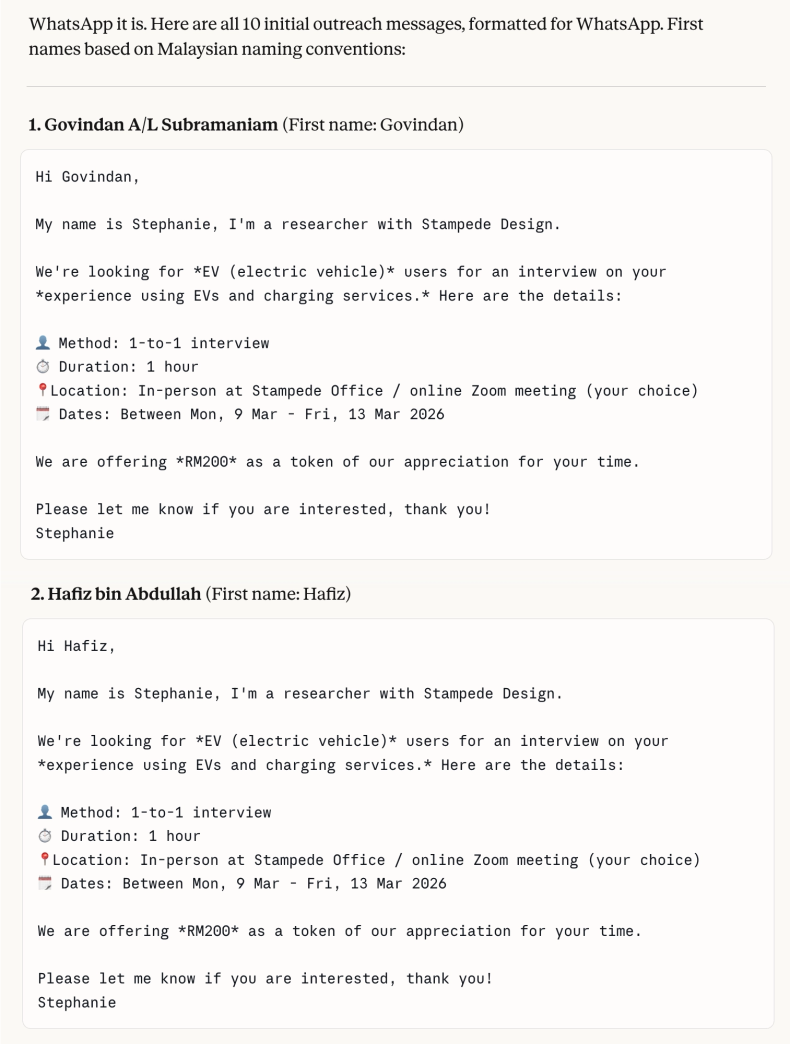
Unless you need to recruit more users than you can practically contact manually, I prefer maintaining the human touch here. The first outreach is critical for building rapport and getting valuable information about your users before you’ve even met them in person – how they speak, their concerns or hesitations, adaptations they need for a successful session. Besides, if users detect an AI is talking to them, the ick-factor can throw them off before you’ve even begun.
But here’s where you can take some of the manual work out – prompt Claude to generate all the initial outreach messages for your users off your template, customised to their names and details:
3. Once the user has agreed (yay!), send the booking link
This is where Google does the heavy-lifting – users select a booking slot, then receive the calendar invite and email confirmation. Google even sends pre-session reminders based on your settings.
4. From here on, keep track of recruitment with Claude
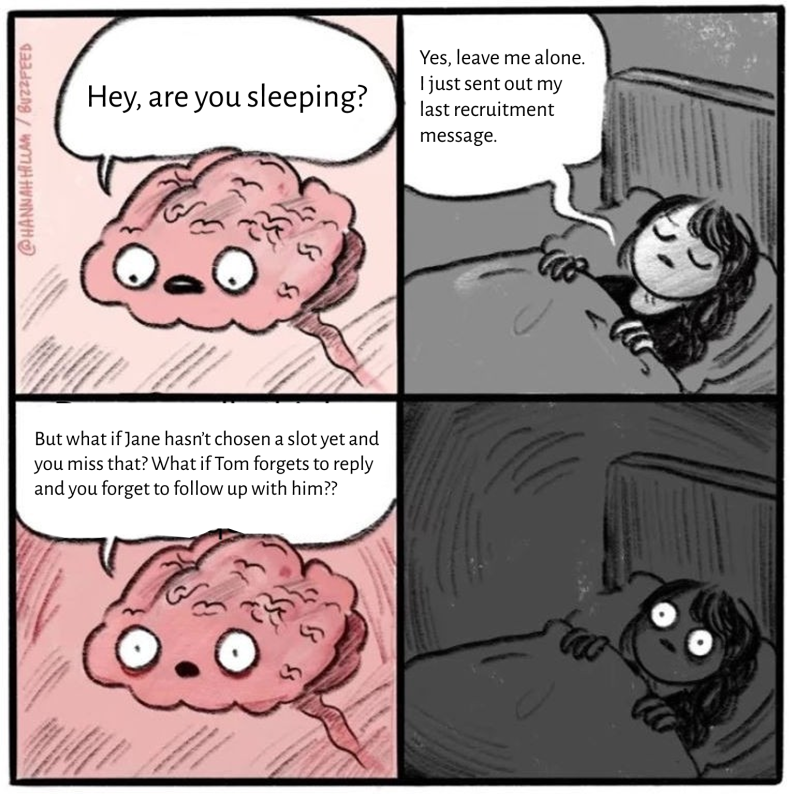
Users, I’m afraid, have an unfortunate habit of not collectively getting together and agreeing on all their slots at once. Chances are in the past you’ve had to constantly keep track of who’s responded, who hasn’t and everything in between.
And the more users you have, the higher the risk of error.
Enter Claude:

Remember those prompts we setup back in Step 1? Now they work for you.
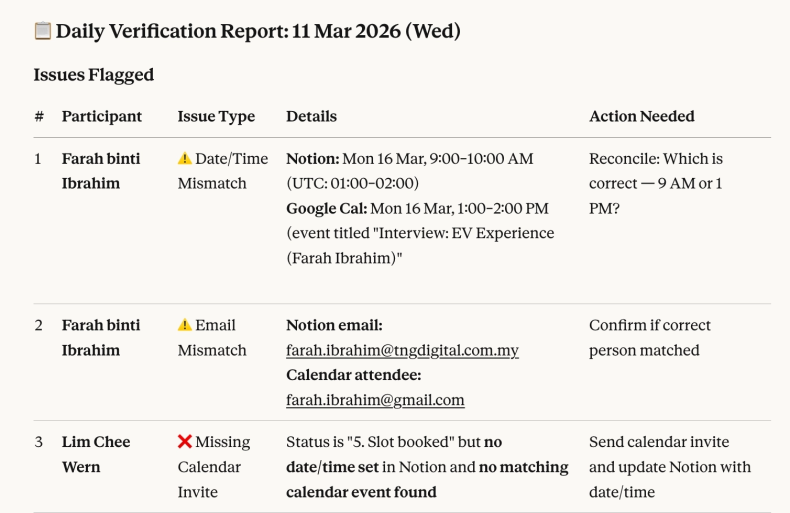
Prompt Claude to do a Daily Verification Check at any time and it’ll compare your Google Calendar with your Notion database to look for all possible instances of error, like:
- Users we haven’t contacted yet
- Users who haven’t picked a booking slot yet
- Users who haven’t received their incentive yet
Gone will be the days of needing to keep a running list of all your users in your brain – let Claude handle that for you.
That’s it!
With any luck, if you follow these steps or adapt them to your work, you can focus more of your energy on actually talking to your users where the human touch still matters.
So what have we gained?
Time-consuming, error-prone work was the biggest pain point in our old process, and now what used to take me 1-2 hours of cumulative back-and-forth a day I can do in 15 minutes at the start of my day. That and just the sheer weight off my mental load of having to keep track of each user.
In other words, my brain will now leave me alone at night to rest peacefully.
What’s next?
We’re still tinkering. Some parts are still manual and error-prone, one of the biggest being the non-sync between Google Calendar and Notion, requiring Claude as the ‘workaround checker’. Who knows, the next step might be recruitment driven solely by Agents (stay tuned for Part 2?).
Move fast, do better, but stay human
At the end of the day, recruitment still involves communicating with real people — and that’s a process worth designing with intention and empathy. Automate the tracking, the scheduling, the error-checking. But keep yourself in the moments that shape your research: that first conversation where you hear hesitation in someone’s voice, the small talk that tells you more about a participant than any screener could. Being intentional about where the human stays in the loop is what ensures our research always keeps the people we’re designing for at the centre.
Thanks for reading! If you’d like to continue the conversation, let’s connect on LinkedIn.
